This is a short one. As I am often playing around with computers and operating systems, installing things and trying out stuff, I often find myself installing Firefox and then applying the same settings and extensions each time. I would like to save myself some work in the future and have a pre-configured Firefox profile ready that I can just copy and paste.
Here is my definition of done:
Research#
My first task was a short research on how Firefox profiles work. In case you do not know, Firefox profiles allow that you basically have fully seperate browser sessions isolated from another. That means if you create a new profile, it is like you just installed Firefox fresh. It is pretty neat, as it allows you to have fully seperated sessions, e.g. for private browsing, work, or freelancing.
With a quick search, I confirmed my suspicion that you can copy and paste profile folders or parts of it to edit them. This means that I could create a new profile and then copy stuff from another profile into it. Mozilla officially suggests this in some cases. I am going to use this method for now.
Creating and configuring#
Next, I created a new profile and started configuring. Here is the list of my changes:
- UI changes
  - Remove VPN banner
  - Remove profile icon for Firefox Sync
  - Remove *Import bookmarks* button from toolbar

- Settings
	- Enable *Open previous windows and tabs*
	- Disable Firefox Home on new tabs or windows
	- Search
		- Set Search to Duckduckgo
		- Remove all *Additional search engines*
		- Turn off search suggestions
		- Turn off *Suggest search engines to use* in address bar
	- Privacy and Security
		- Turn on *Tell websites not to sell or share my data*
		- DNS over HTTPS is unchanged for now
	- Passwords and autofill
		- Disable *Ask to save passwords*
		- Disable *Save and autofill payment info*
	- Downloads
		- Enable *Ask where to save files before downloading*
	- Tabs and Browsing
		- Enable *Vertical Tabs*
		- Enable *Ctrl+Tab cycles through tabs in recently used order*
		- Disable *Use AI to suggest tabs and a name for tab groups*
		- Disable *Recommend extensions as you browse*
		- Disable *Recommend features as you browse*
	- Languages
		- Added German to preferred languages
		- Translation settings
			- Added German to never translate
			- Added English to never translate
	- AI controls
		- Disabled *Chatbot in sidebar*
	- Permissions and Data
		- Disable *Allow Firefox to improve features, performance,
               and stability between updates*

- Extensions
	- uBlock Origin
		- Add all usual filter lists and update
	- Sponsorblock
		- Edit settings to liking
	- SkipRedirect
	- Consent-o-matic
		- disable animation
	- Unhook for Youtube
Trying to figure out a .gitignore#
Anyone who has looked into a Firefox profile folder knows that it is quite full. There are a lot of files that are not really important, like cache, backups, etc. As I plan to track this with git, it makes sense to exclude them from tracking. Exactly what .gitignore is for.
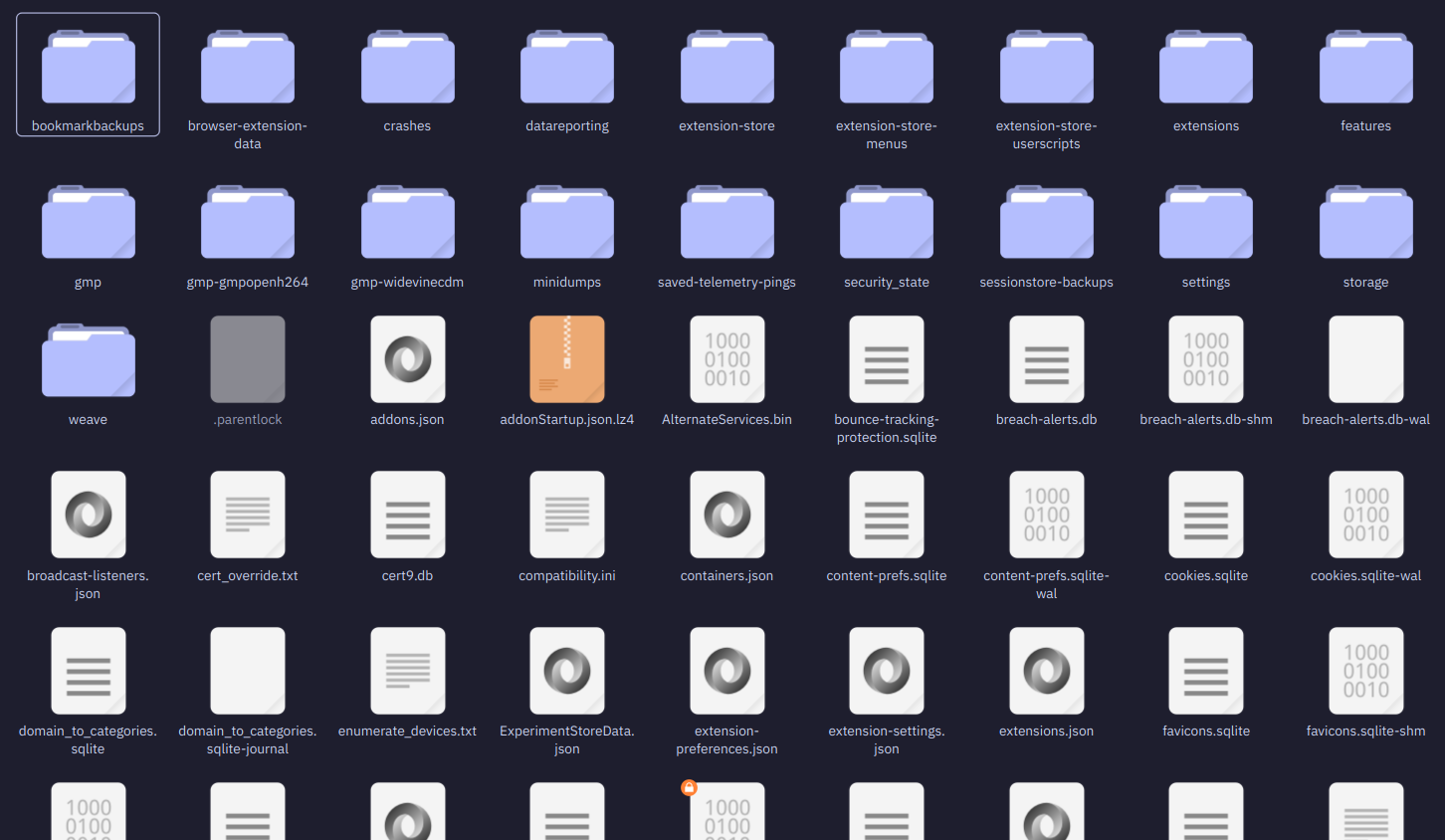
However, I did not find a reliable source that tells me what to ignore and what not. I tried some methods I thought were smart (using git diff to see what changed and then some advice by AI based on this to write the gitignore), but it did not work. Whenever I tried to copy over the reduced profile, nothing was applied.
But copying over the whole profile with all things worked just fine, so in the end I just tracked everything in git, even though it felt a bit wrong.
Testing and documentation#
I wrote a little README.md and documented the process. It can be found here, if you are curious and want to recreate the process.
README.md
This is a repo that stores a default firefox profile with sensible defaults, settings and extensions.
To use this profile follow these steps:
- Open Firefox -> Menu -> Profiles -> Create new profile -> Follow the dialogue and give it a name
- When in the new profile open a new tab and enter
about:supportand go to the folder that can be found inProfile Directory. This is the folder of the newly created profile. - Close all Firefox instances.
- Download whole content of the repo (e.g. as .zip) and extract it into the profile folder. Overwrite when asked.
- Open Firefox and the new profile again. It should now have all changes.
Then I tested everything out and it works fine! As the last step, I downloaded the current version of the baseline profile and put it on a site that serves static files for me. This way, I can always download it from any device, in case I need it.
Summary#
Besides the little detour of trying to figure out a .gitignore, this was actually quite fast and simple :) Now I have a nice baseline that I can quickly use whenever I need it.
Let’s celebrate!
